
Early access · Release date: October 22, 2026
UpdatedGroundwork Simulator Controls: Dig, Drive, and Wash
Learn Groundwork Simulator controls for excavators, trucks, tools, and wash plants. Set up your keyboard, handle heavy equipment, and finish your cleanup.
Jump to
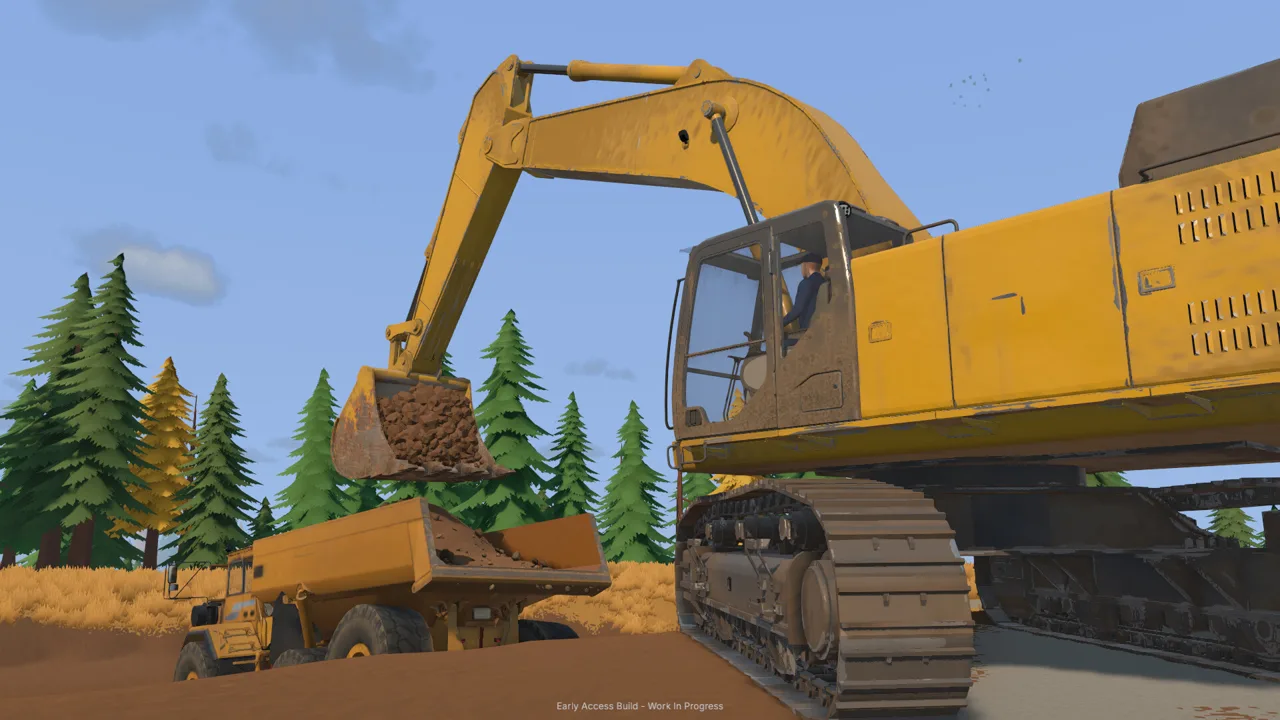
Groundwork Simulator Controls: Essential Keys
Groundwork Simulator controls become much easier to learn when you separate driving, digging, and equipment interactions. That distinction matters because the same key can hitch a trailer, start machinery, or carry your cleanup pallet. Learn the essential Groundwork Simulator controls before tackling a full load of pay dirt, and you can spend more time excavating and less time fighting the keyboard.
Start with the controls below, then check the prompts for the machine you’re using. These bindings apply to the launch Early Access gameplay from October 22, 2026, before any personal remapping.
| Key or input | Function | Where to use it |
|---|---|---|
| E | Enter or exit machinery; interact | Vehicle doors, pumps, sluice boxes, cleanup table |
| G | Perform an equipment-specific action | Trailer hitch, generator, conveyor, wash plant, cleanup pallet |
| C | Change camera view | Switch available views while operating equipment |
| Tab | Switch between machines | Move directly between vehicles |
| Escape | Open the menu | Settings, controls, machine dealer, company management |
| Hold 1 | Open the tool dial | Select tools such as the material detector |
| F2 | Display additional control information | Check machinery controls |
| X | Toggle differential lock | Vehicles crossing difficult ground |
| L | Access the recovery winch | Recover a vehicle using an attachment point |
Read the nearby interaction prompt before pressing G. At a generator, it starts the power supply. Near the caravan hitch, it attaches or detaches the trailer. Beside the cleanup pallet, it handles carrying and placement.
Positioning matters, too. Walk around the equipment until you reach its interaction area. If nothing happens beside the generator, check the panel toward its front before repeatedly pressing the key.
Official page: Groundwork Simulator (store.steampowered.com)
Set Up Your Keyboard and Learn the Excavator
Before memorizing Groundwork Simulator controls, open Settings → General and check the keyboard layout. The launch settings include QWERTY, and changing to that layout replaces the unfamiliar Z/S/Q/D arrangement encountered during the tutorial.
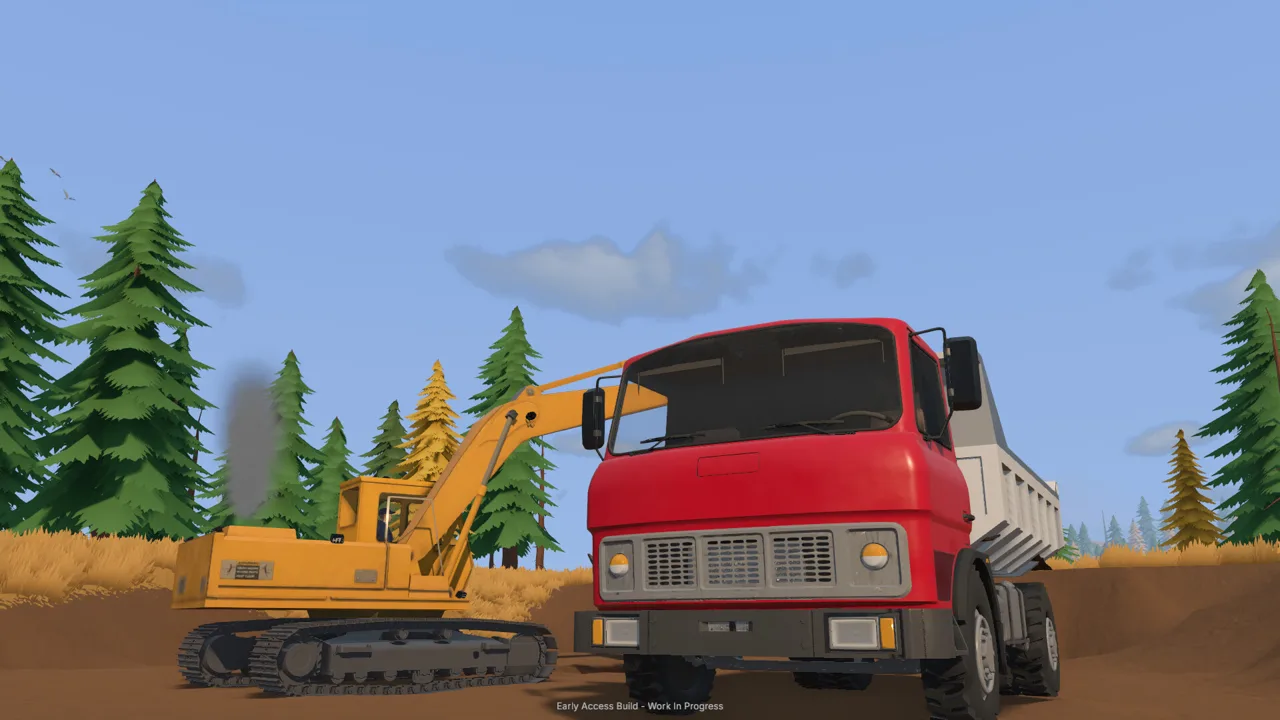 Image: Steam / XYZ STUDIO
The settings also include ISO and SAE joystick patterns. Check that selection alongside your keyboard layout before practicing, then use the Controls menu to remap individual actions.
| Setting or control group | Launch behavior | What to practice |
|---|---|---|
| Keyboard layout | QWERTY is available in General settings | Select your layout before learning bindings |
| Left joystick keys | W/A/S/D with QWERTY selected | Test each direction separately |
| Right joystick keys | I/J/K/L | Separate lifting from bucket movement |
| V | Switch into driving mode | Reposition the excavator before digging |
| Controls menu | Individual bindings can be changed | Remap movements that feel reversed |
Learn each movement before combining them
Keep the bucket clear of the ground and test one input at a time. Identify the boom, arm, bucket curl, and swing movements before attempting a loaded rotation.
The launch arrangement includes I for downward movement and K for upward movement in the excavator setup. If those directions feel backward, change them in Controls. Retest the machine after remapping so you don’t keep reaching for the old binding.
Practice this digging sequence:
- Extend toward the material.
- Lower the bucket into position.
- Draw through the soil while curling the bucket.
- Lift the load clear.
- Swing toward the truck.
- Position the bucket over the bed and dump.
Start with deliberate, separate movements. Combine them once you can complete the cycle without reversing an input.
Work with hydraulic resistance
Excavation includes hydraulic feedback, and the bucket meets resistance as it cuts through the terrain. Forcing a deep bite can make a movement struggle.
Take a shallower cut and adjust the bucket angle when that happens. Watch the soil entering the bucket, then lift once you have a useful load.
Every scoop changes the ground. Leave yourself room to reposition, and keep the truck’s approach clear as the pit grows. Learning Groundwork Simulator controls includes managing the landscape your previous bucket just created.
Drive, Haul, and Load Without Losing Material
The tutorial moves material through several machines: excavator to dump truck, dump truck to stockpile, and wheel loader to conveyor hopper. Each transfer gives you a different control task.
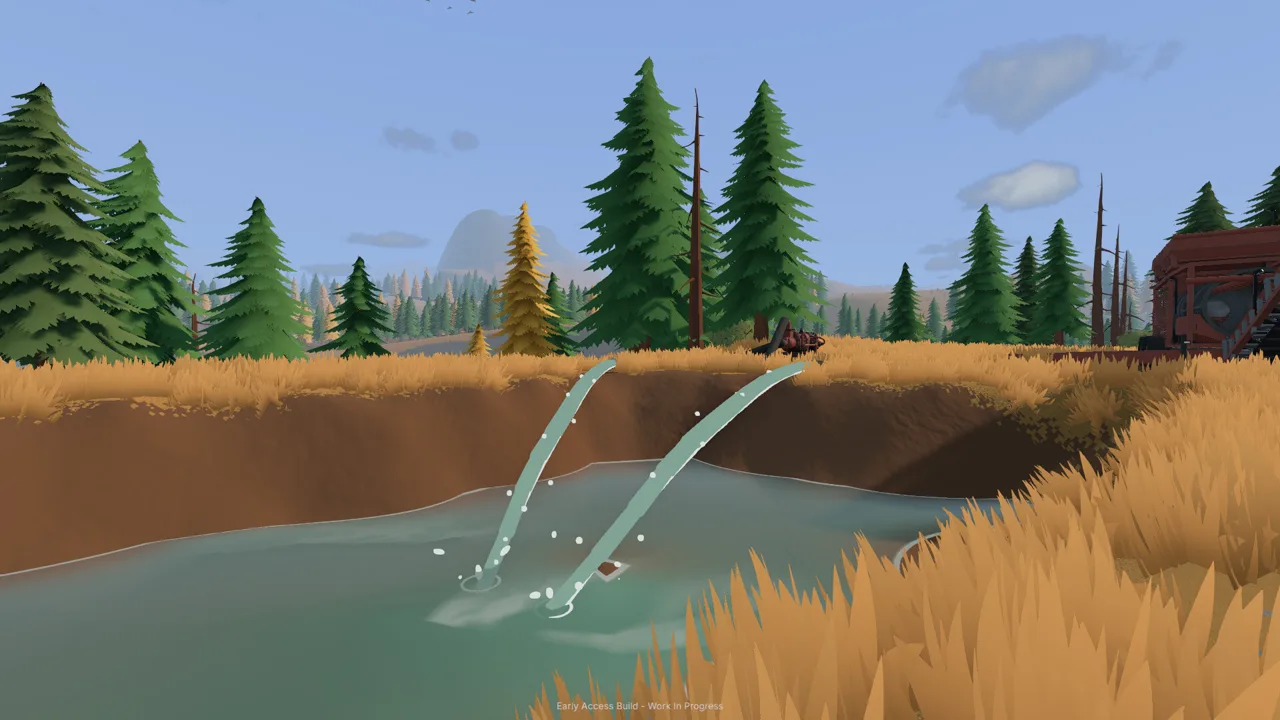 Image: Steam / XYZ STUDIO
Use the camera to check alignment before moving. First-person and external views are available on several machines, but the launch drill truck does not offer the same first-person option.
| Equipment | Relevant controls | Task |
|---|---|---|
| Pickup and caravan | G | Hitch or unhitch the caravan |
| Dump truck | I/K | Raise and lower the dump bed |
| Wheel loader | I to lower, K to raise; J/L for bucket tilt | Scoop stockpiles and fill the hopper |
| Conveyor | E at its control area | Take or leave positioning controls |
| Heavy transport | Truck and trailer operation | Move machinery between worksites |
Align before lifting
Approach the stockpile with the loader bucket low and approximately level. Drive into the loose material, curl the bucket back, and lift it enough to carry the load.
Line up with the conveyor hopper before raising the bucket for dumping. Check where the bucket lip sits relative to the opening. Dumping from beside the hopper leaves material on the ground.
Watch the load indicators instead of judging capacity only by appearance. The tutorial’s DT44 loading objective uses 5 cubic meters, while the conveyor hopper shown during operation has a 6.5-cubic-meter capacity. Those are separate containers, so check the relevant display during each transfer.
Give the dump pile room
Tip the truck where the wheel loader can approach the resulting pile. Follow the tutorial’s marked stockpile area while working through its objectives.
If the raised bed leaves material trapped against the growing pile, pull forward slightly to give it room to fall. Lower the bed before returning for another load.
The Groundwork Simulator controls you use for hauling are only part of the job. Keep the route open, avoid crowding the stockpile with parked vehicles, and plan enough turning space around the wash line.
Connect Water and Run a Complete Wash Cycle
Your washing setup needs water, power, and correctly ordered machine operation. Build the connections before feeding the plant.
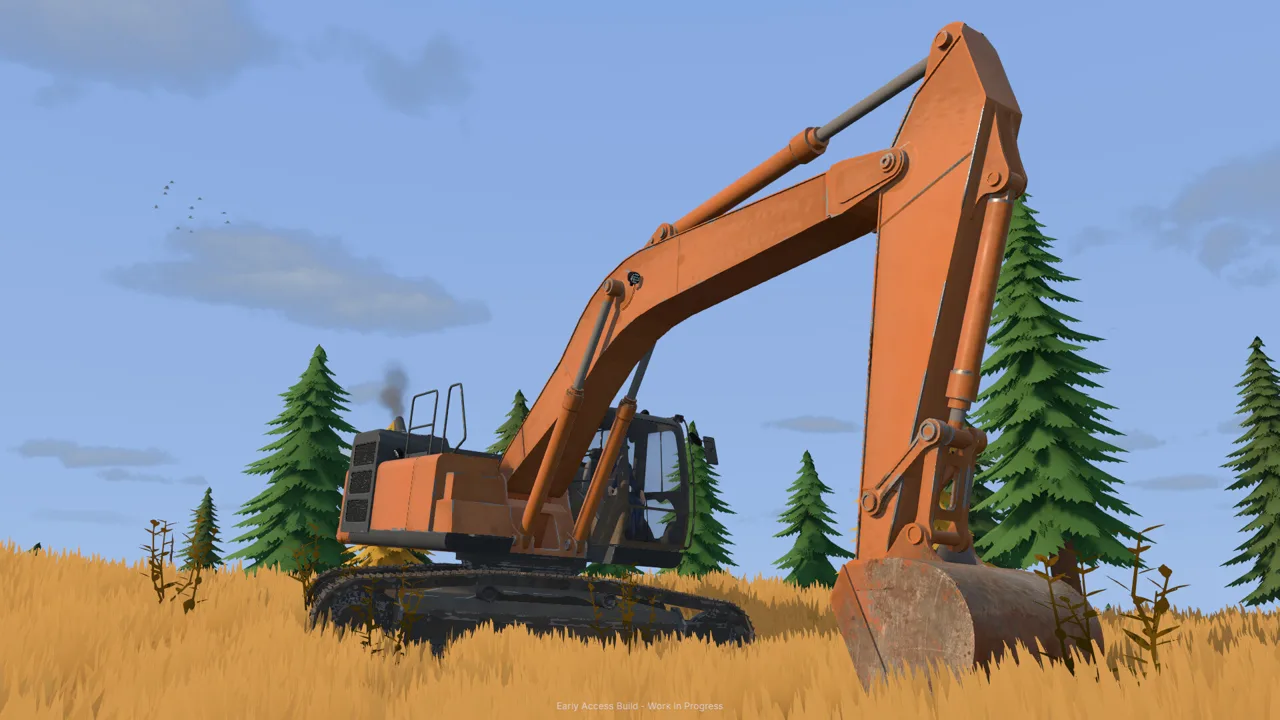 Image: Steam / XYZ STUDIO
During the starting tutorial, the river pump fills a holding pond. A second pump supplies the mobile trommel from that pond. Use the left mouse button on the hose fittings and follow the highlighted placement points.
| Equipment or interaction | Input | Result |
|---|---|---|
| Pump hose fittings | Left mouse button | Select and place hose connections |
| Pump switch | E | Switch the pump on |
| Mobile trommel | K near its controls | Unfold the equipment |
| Generator | G near its controls | Start the generator |
| Trommel or conveyor | G at the respective controls | Start or stop that machine |
| Stopped sluice boxes | E | Empty the concentrate |
| Cleanup pallet | G | Pick up or place the pallet |
| Cleanup table and gold jar | E | Start cleanup, collect gold, or store the jar |
Start the plant before the conveyor
Once the water supply and generator are ready, start the trommel before starting the loaded conveyor. The drum and spray bar need to be running when material arrives.
Keep an eye on the hopper while feeding. The conveyor includes an adjustable operating speed; increasing that speed sends material onward faster. Match the feed to what the plant can process instead of immediately pushing it to its highest setting.
When the feed finishes, complete the shutdown and cleanup sequence:
- Stop the conveyor with G.
- Allow the remaining material to finish processing.
- Stop the wash plant with G.
- Stand beside the sluice boxes and press E to empty them.
- Carry the cleanup pallet with G and place it at the cleanup table.
- Look at the table and press E to start processing.
Collect and store the finished gold
The tutorial cleanup table processes concentrate at 125 grams per hour. It directs you to Settings → General to increase time speed to 120× during cleanup.
Wait until processing finishes, then look at the gold jar and press E to collect it. Press E again to place it into storage. Open Gold Prices afterward to sell the stored gold.
Check the pond during this process. Leaving the river pump running can overflow it and flood the claim. Shut off that incoming supply when necessary.
Groundwork Simulator controls reward attention to the whole operation: a running conveyor, an overflowing pond, and a finished cleanup each need a different response.
Survey Deposits and Handle Control Problems
Hold 1, select the material detector, and release to equip it. Aim its coil at the ground and hold the left mouse button until you receive a reading.
The detector checks shallow ground. Use the drill truck to investigate deeper layers and compare those results with the surface scan.
| Drill truck input | Function |
|---|---|
| G during initial setup | Deploy the drilling setup |
| K | Start the rotary drill |
| Down arrow | Feed the drill downward |
| I | Add a rod when prompted |
| U | Pull the drill and finish the hole |
| H during the movement step | Lift stabilizers before repositioning |
Position the rear of the truck over the intended hole. Follow the current setup prompt, start drilling, and watch the depth and material display.
The tutorial includes holes reaching 3 meters and 4 meters. Add a rod when the drill reaches its extension limit and the prompt requests one. After completing the hole, retract the drill and lift the stabilizers before driving.
Recover from mud and confusing inputs
Use X for differential lock when crossing difficult ground. If the vehicle becomes stuck, access the recovery winch with L and follow its attachment prompt. Check that you have cleared the nearby terrain before trying to move again.
When Groundwork Simulator controls seem unresponsive, check these points:
- Wrong operating mode: Use the driving-mode control before repositioning machinery.
- Wrong interaction location: Move to the equipment’s panel or highlighted control area.
- Unexpected movement: Recheck the keyboard layout and any remapped bindings.
- Missing instructions: Open the additional control information with F2.
- Rental return blocked: Exit the rented machine before returning it through the company menu.
The launch Early Access build also has menu problems, including navigation becoming stuck on the Gold Map. Save and close, then reload if the menu stops responding. After returning, check the current tutorial objective before continuing equipment work.
FAQ
Where can I change Groundwork Simulator controls?
Open the menu and select Controls to remap actions. Check Settings → General for the keyboard layout and ISO or SAE joystick pattern before changing individual bindings.
How do I switch between vehicles?
Press Tab to cycle between machines. The tutorial uses this to reach the delivered drill truck without walking across the site.
Why does G perform different actions?
G changes function with the nearby equipment. It can operate the caravan hitch, start the generator or wash machinery, and pick up or place a cleanup pallet. Read the current interaction prompt.
How do I stop the holding pond from flooding?
Turn off the river pump supplying the pond. The second pump supplies the trommel from the pond, so shutting down that pump alone leaves the incoming river water running.
Continue with
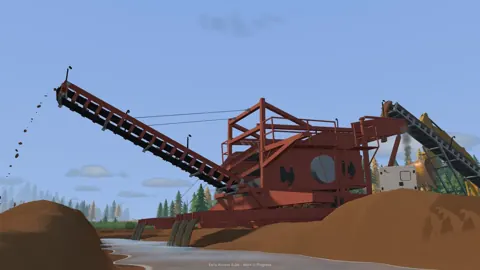 Groundwork Simulator Multiplayer: Co-Op Guide & TipsGroundwork Simulator multiplayer lets you dig and haul with friends. Learn co-op roles, plan a mining site, and understand launch issues before you play.
More in Guide
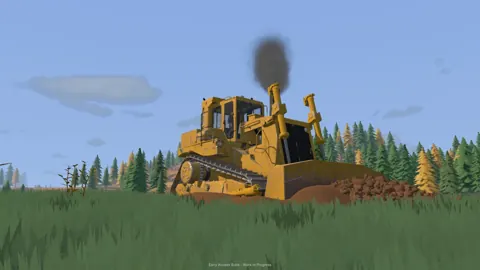
Groundwork Simulator Beginner Guide: Your First Gold
Use Groundwork Simulator beginner guide to set up water and power, handle heavy machinery, wash pay dirt, and sell your first gold. Start digging today.
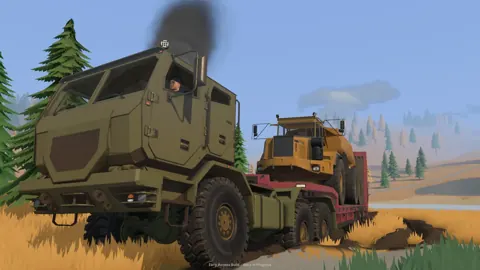
Groundwork Simulator Review: Digging Into Gold Mining
Groundwork Simulator review covering excavation, gold washing, online co-op, and PC requirements. Explore the machinery and plan your mining operation.
Continue exploring

Join the community
Official channels for news, updates and player help: